Mortal Shell II Best PC Settings and Performance
Tune Mortal Shell II for stable frames without losing the ash-and-blood atmosphere.
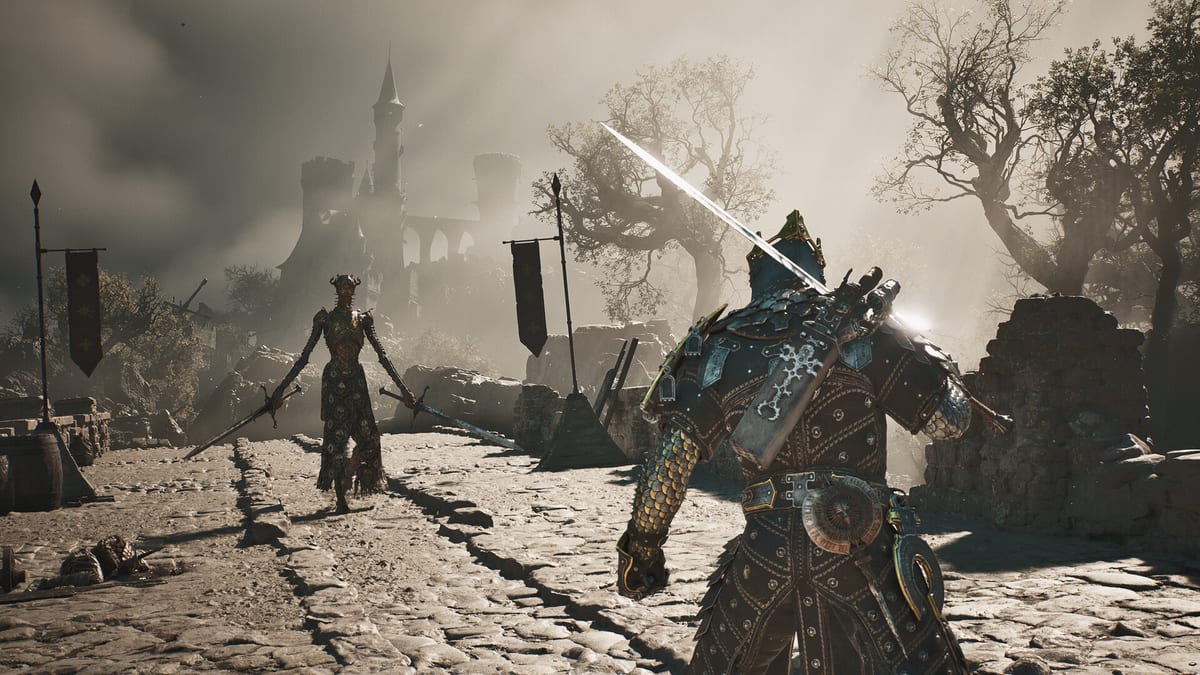
Cold Symmetry’s sequel scales cleanly on modern mid-range hardware, but the first hour of launch day is when most PC stutters happen. This page gathers the settings worth touching first, the ones to leave alone, and the diagnostic steps if your machine sits on the published minimum on the system requirements page. Use it beside the combat guide because a stuttering game will hide your Harden timing.
Start with the right preset
Begin on High rather than Ultra. Ultra mostly raises shadow distance and post-process quality, which the soulslike camera does not benefit from. High usually keeps post-process at a similar tier to Ultra while freeing enough GPU headroom for stable 60 fps on a GTX 1660 Super / RX 6600 class card. If you have an RTX 30- or 40-series card, Medium with sharpening on is often the cleanest image. Owners of RTX 20-series should stay on High and lean on DLSS Balanced; AMD owners can lean on FSR Quality.
Resolution, upscaling, and frame target
- Render scale: leave at 100 unless you are CPU-bound.
- DLSS / FSR / XeSS: start on Quality and only drop to Balanced or Performance if frame pacing breaks. The game is dark by design, so upscaling artifacts hide well in fog and shadowed dungeons.
- Frame cap: match your monitor refresh (60 / 120 / 144). Uncapped introduces micro-stutter on 60 Hz panels.
- VSync: off if you cap frames in the driver instead, on if you do not use a frame cap.
The settings that actually matter
Texture quality is VRAM-bound. 8 GB cards should stay on High; 6 GB cards must drop to Medium or you will hitch every time a new area loads. Shadow quality is the biggest fps killer—dropping from Ultra to High typically buys 8–12% on mid-range GPUs. Volumetrics and screen-space reflections look gorgeous in trailers but cost the most; trim them before touching shadows. Ambient occlusion should be on SSAO Low unless you have headroom—HBAO is overkill for this art style.
Post-processing, particles, and the mood
Bloom, lens flare, and chromatic aberration are stylistic. Keep motion blur off entirely—Harden windows are timing-critical and blur hides telegraphs. Depth of field is fine on Low; the camera rarely lingers. Particle count is a hidden stutter source: set to High only if your CPU has 8+ modern cores.
Display, HDR, and accessibility
- Brightness / gamma: Mortal Shell II is dark by design. If the Keep and forest look muddy, raise in-game brightness by 5–8% and lower contrast one step before blaming your monitor.
- HUD scale: bump it up on 4K displays. Default is sized for 1080p.
- Subtitles: enable from the first launch; the spoken word is sparse and the lore is in item text.
- Colorblind modes: three filters ship in the accessibility menu—toggle them early if you intend to keep them.
- Vibration / aim assist: tune before a serious boss attempt, not during.
Mouse and keyboard vs controller on PC
A controller is the default expectation because the combat feel was tuned around gamepad input. Mouse-and-keyboard works, but lock-on behaves differently. If you insist on KBM, rebind Harden to a side mouse button—see the controls guide for the rest. A wired Xbox or DualSense pad reduces input lag noticeably over Bluetooth.
Audio settings that change how fights feel
Set voice / music / SFX to a 4 / 6 / 8 mix rather than the default flat 5 / 5 / 5. Footsteps and parry audio become much more readable, which directly improves the Harden and posture loop. Keep audio format on the highest the system can negotiate; bitstream over HDMI or DisplayPort ARC.
Diagnosing launch-day stutter
- Update GPU drivers to the day-one branch Nvidia / AMD publish for Mortal Shell II.
- Confirm the game is installed on an SSD, not a 5400 rpm HDD. Streaming hitches are the leading cause of audio crackle.
- Disable MSI Afterburner overlay, Discord overlay, GeForce Experience in-game overlay one at a time and re-test. The game hates nested overlays on first run.
- Verify the executable is excluded from antivirus real-time scanning.
- If stutter persists, drop Shadow quality and Volumetrics together before touching anything else.
When to wait for a patch
Day-one patches are common. If the game runs cleanly on the Open Beta on your machine but stutters at launch, give the first patch a few days before tuning further. Cold Symmetry’s first patches have historically targeted shader compilation stutter and shader cache paths. Confirm the patch note through the links hub before chasing every optimization thread.
Controller and input edge cases
If your gamepad shows as a generic input device, set Steam Input to Disabled so the game sees the raw controller. The DualSense haptics and adaptive triggers work via USB on PC; wireless needs the official adapter. If you bought a third-party Hall-effect pad, check that Steam has not forced legacy mode on it.
Power-user tweaks
The game respects High-performance power plan but does not force it. In Windows Settings, switch the per-app preference for the launcher to High performance. On laptops, plug in before launching: the GPU down-clocks on battery and the result is the same stutter you spent ten minutes diagnosing. Set Process Lasso or similar to keep the game on the performance cores if your laptop uses a hybrid architecture.
Final pre-launch pass
Walk the pre-launch checklist the night before. Confirm drivers, free SSD space, kill overlays, and lock your edition via the editions page. When everything passes, you can spend the August 20 evening actually fighting instead of fiddling with settings. Bookmark the updates hub so you see the first patch the moment it lands.
Keep reading
Tune the inputs on the controls guide, revisit combat and Harden once frames are stable, and consult the Shell tier list if performance makes you reconsider your main.
Frequently Asked Questions
Quick answers for launch week and the open beta.
Should I cap frames or leave it uncapped?
Cap to your monitor refresh in the driver. Uncapped causes micro-stutter on 60 Hz panels and the game will not benefit from 200+ fps for combat timing.
Is DLSS Quality better than native at 1440p?
On most RTX cards yes. The image is near-indistinguishable from native in dungeons and the fps gain is roughly 30–40%.
Why does the game hitch on first run?
Shader compilation. Let the first session sit in the prologue area for 10–15 minutes; later sessions will not hitch.
Do I need an SSD?
Yes. The published minimums list SSD required. HDD installs ship with random audio crackle and texture pop-in.